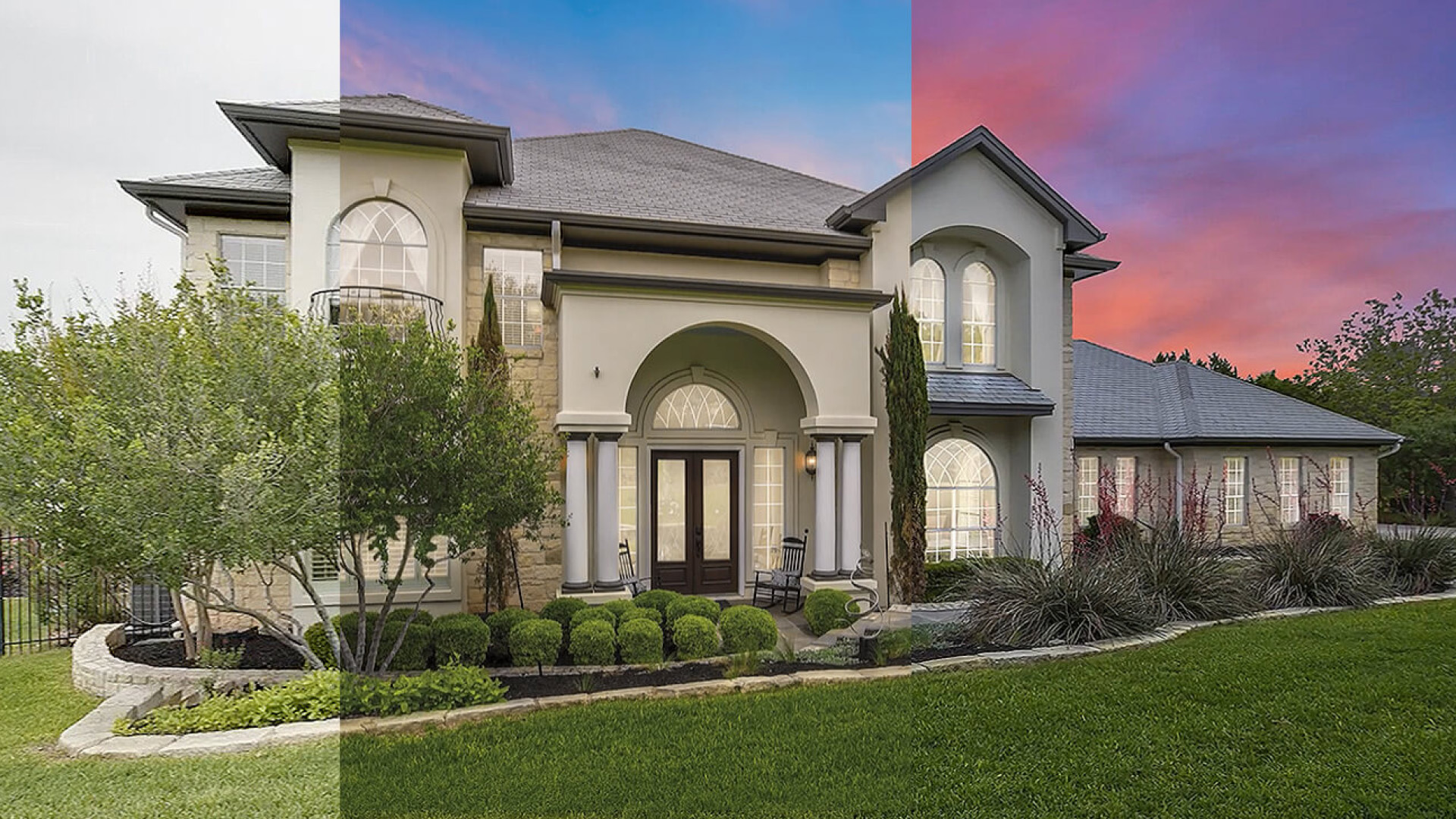
Photo editing is the final bridge between a raw capture and a professional masterpiece. While high-end gear and a keen eye for composition are essential, the post-production stage is where an image truly gains its identity. Unfortunately, many photographers fall into common traps that can quickly turn a potential portfolio piece into amateur work. Whether you are using Adobe Lightroom, Photoshop, or specialized mobile apps, understanding the subtle nuances of color, light, and texture is crucial.
Poor editing choices—like overblown highlights or radioactive colors—don't just distract the viewer; they break the trust between the photographer and the audience. In this guide, we will explore 11 of the most frequent photo editing mistakes that even experienced professionals sometimes make. More importantly, we provide actionable fixes for each, helping you deliver professional real estate photo editing results that look clean, natural, and visually stunning every time.
Common Photo Editing Traps and Their Solutions
1. Overusing Saturation Instead of Controlled Color
One of the fastest ways to ruin a photo is pushing saturation too far. Highly saturated images may look eye-catching at first, but they quickly feel unnatural, harsh, and unprofessional—especially in skin tones or organic textures.
- Why This Happens: Many photographers use the Saturation slider as a shortcut to “make colors pop.” The problem: saturation boosts all colors equally, including ones that shouldn’t be emphasized.
- How to Fix It: Use Vibrance instead, which targets less-saturated colors first. Adjust individual colors using HSL (Hue, Saturation, Luminance) for surgical precision.
2. Ignoring White Balance and Color Temperature
Incorrect white balance makes photos look cold, yellow, or completely off—even if everything else is edited well. Our eyes are extremely sensitive to color temperature; bad white balance instantly breaks realism.
- Why This Matters: Consistency is key for building client trust in photo editing.
- How to Fix It: Set white balance before any other edits. Use the White Balance Selector (eyedropper) on a neutral gray or white area to find the baseline.
3. Over-Sharpening Images
Sharp photos are good, but "crunchy" edges are a clear sign of poor editing. Over-sharpening creates halos, digital noise, and unnatural textures that distract the viewer.
- The Mistake: Applying high global sharpening to an image with a lot of detail or noise.
- How to Fix It: Use Masking in Lightroom (hold Alt/Option while dragging) to apply sharpening only to the edges, keeping smooth areas like skies or skin clean.
4. Crushing Shadows or Blowing Highlights
Extreme contrast destroys detail and reduces the dynamic range of your image. If your shadows are pure black or your highlights are pure white with no texture, you've lost valuable information.
- Signs to Watch For: Pure white "holes" in the sky or deep black pits in the corners of a room.
- How to Fix It: Always check your histogram while editing. Recover highlights and shadows before increasing global contrast to ensure you preserve information in both extremes.
5. Relying Too Much on Presets Without Adjustments
Presets are excellent starting points, but they are rarely "one-click" solutions. Applying a preset and exporting without adjustment leads to inconsistent portfolios and inaccurate exposure.
- The Solution: Treat presets as a foundation. After applying, always fine-tune exposure, white balance, and contrast to match the specific lighting of the original shot.
- Internal Tip: Learn more about the limitations of AI in photo editing to understand why human touch is still required.
6. Excessive Noise Reduction
Noise reduction is necessary for high-ISO shots, but overdoing it leads to a "plastic" or "waxy" look where all natural texture is lost.
- Common Sign: Skin looks smudged and architectural details lose their sharpness.
- How to Fix It: Apply noise reduction in moderation and only where needed. Sometimes a little bit of grain is better than a blurry, unrealistic mess.
7. Overusing Clarity, Texture, or Structure
These sliders are powerful but dangerous. Overuse creates harsh edges and a "gritty" feel that can make an image look dated or dirty.
- Pro Tip: Avoid using Clarity on faces or portraits. For real estate, use subtle adjustments to enhance unique property features without making the room look "crunchy."
8. Ignoring Local Adjustments
Global edits (applying changes to the whole photo) rarely produce professional results because light and color are not uniform across a frame.
- How to Fix It: Use Brush, Radial, and Graduated filters to guide the viewer's eye. Darken backgrounds slightly to make your subject pop, or use local exposure adjustments to balance uneven lighting.
9. Poor Cropping and Composition Decisions
Editing isn’t just about the sliders; it’s about the frame. Bad crops can cut off limbs awkwardly or leave distracting elements at the very edge of the image.
- Rule of Thumb: Crop with intention. Remove distractions and use the rule of thirds to strengthen subject placement. A good crop can often save an otherwise average photograph. When physical items or temporary clutter cannot be cropped out without compromising room perspective, use virtual decluttering and object removal to cleanly eliminate distractions while keeping the room framing intact.
10. Editing Without a Consistent Style
If every photo in your portfolio has a different "mood," it becomes difficult for clients to understand your brand. Professionalism comes from a refined, recognizable aesthetic.
- How to Build Style: Define a consistent color palette and limit the number of tools and presets you use. Consistency is what separates a hobbyist from a professional photographer.
11. Over-Editing Instead of Knowing When to Stop
The most overlooked skill in post-production is restraint. It is easy to keep tweaking until the photo no longer looks like the scene you captured.
- The Golden Rule: Step away from the screen for 10 minutes before doing your final export. When you come back with fresh eyes, you'll often realize you went a bit too far.
Conclusion: Edit with Intention
Mastering photo editing is less about learning every slider and more about developing a sense of restraint and intention. Most mistakes stem from trying to "save" a photo or chasing a trend rather than enhancing the natural beauty of the scene.
By focusing on consistency, protecting realistic tones, and knowing when to step away from the screen, you can significantly elevate your brand. Remember, the best edits are often the ones the viewer never notices. If you want to see the difference professional handling makes, explore our real estate photo editing services or our virtual staging solutions.
Keep refining your workflow, and always prioritize the story the image is trying to tell.